Chat Interface
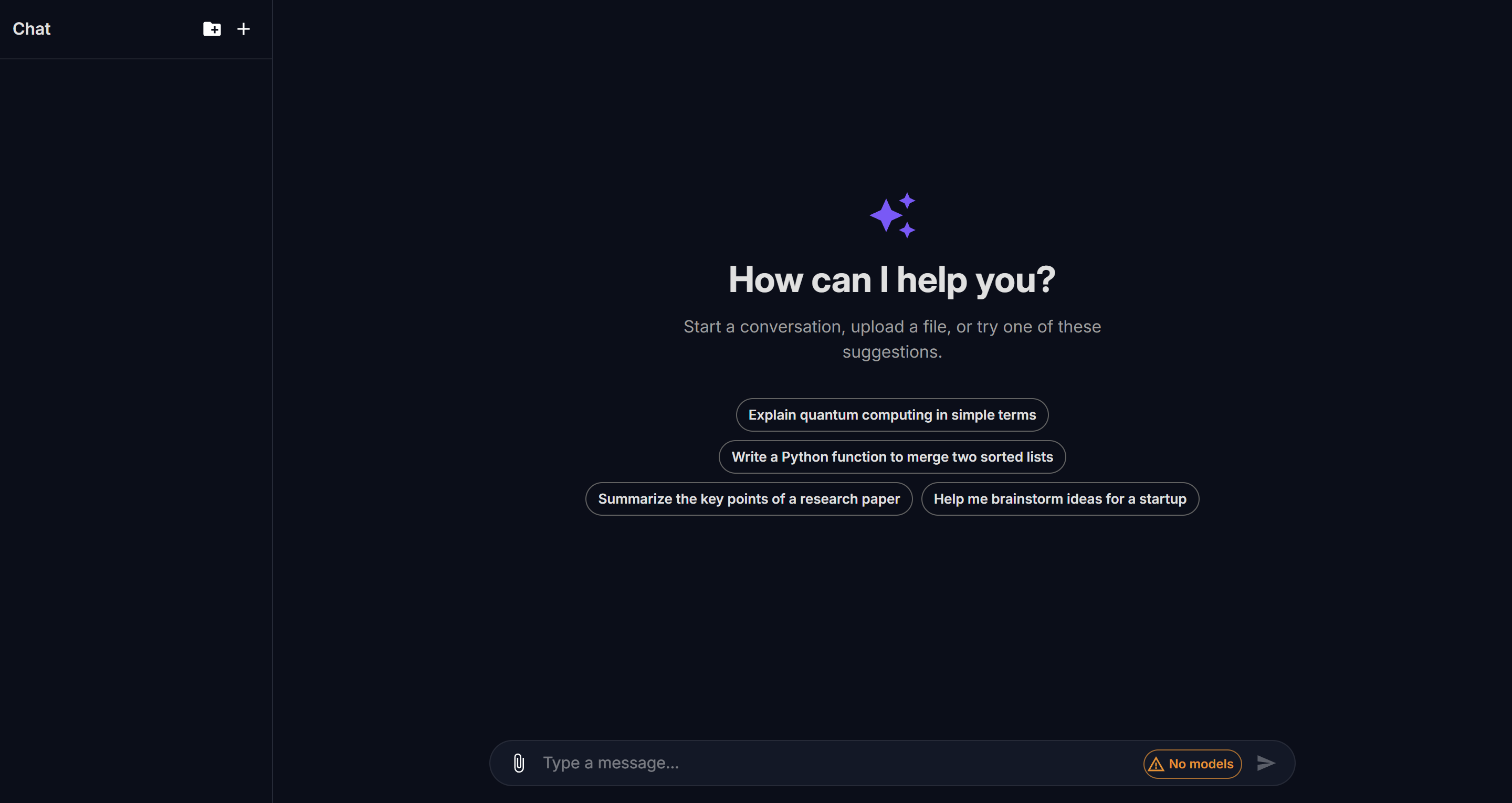
The llm.port chat interface is a full-featured conversational UI for interacting with LLM models through the governed gateway.
Layout
The interface has three main areas:
- Sidebar — lists projects and sessions, with controls to create, rename, and delete
- Conversation pane — displays the message thread with user and assistant messages
- Right drawer — opens on demand with Tools and Privacy tabs
Projects and sessions
Every conversation belongs to a project. Projects group related sessions and let you apply shared settings like a system prompt.
Creating a project
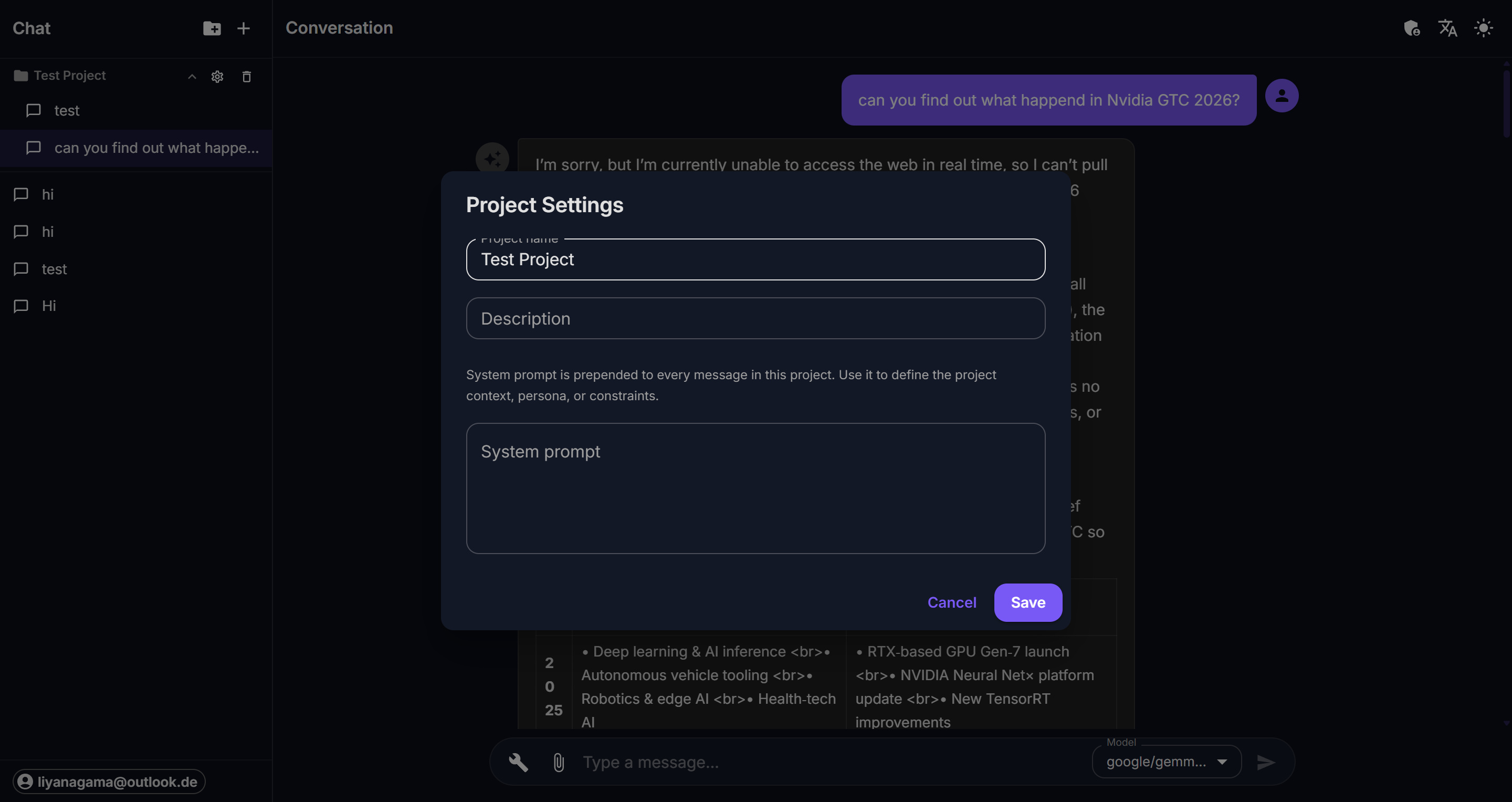
Click the folder icon in the sidebar header. Each project gets a name, optional description, and a system prompt that is prepended to every message.
Managing sessions
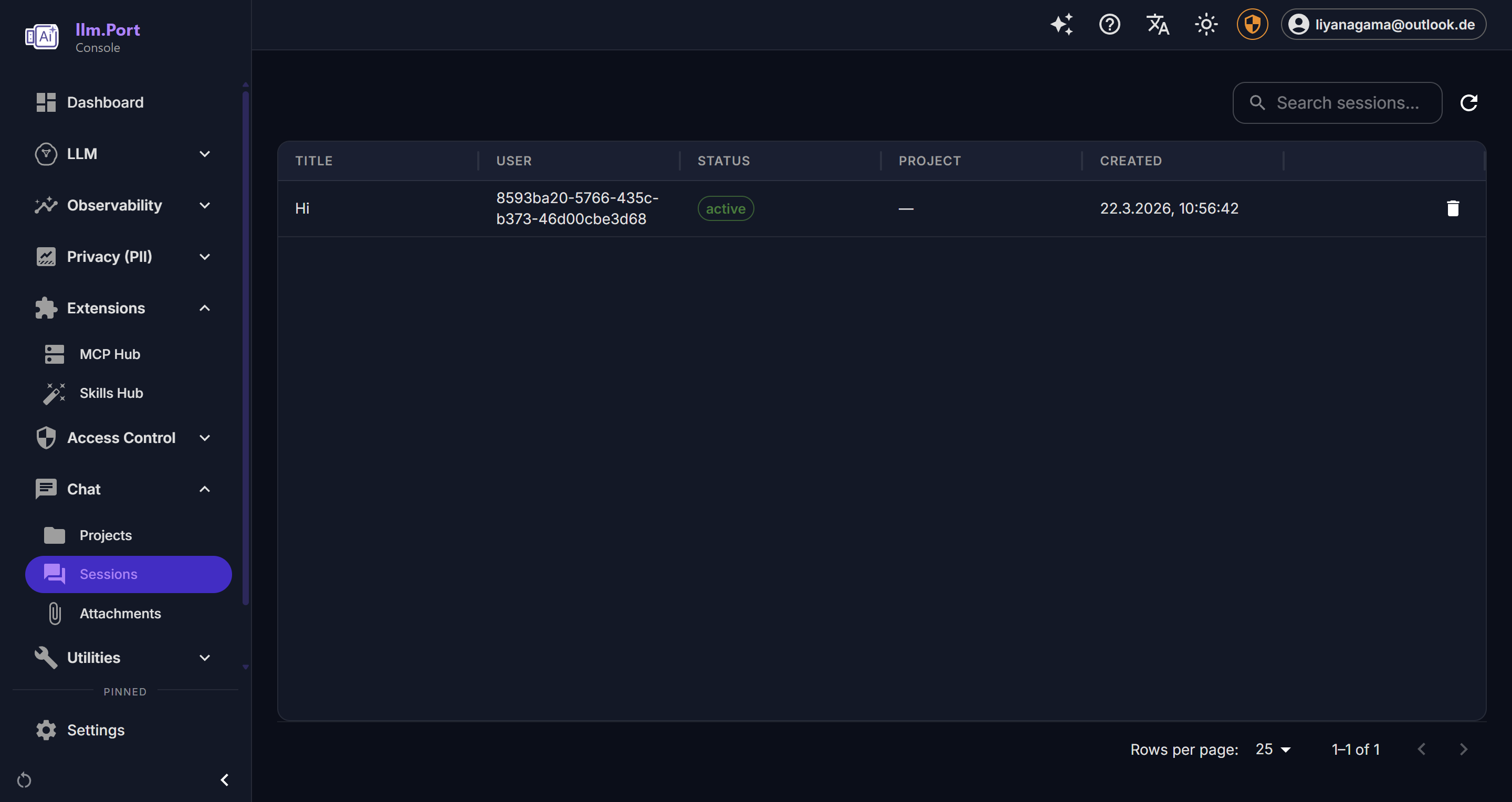
Sessions are individual conversations within a project. Use the + button to start a new session. Click any session in the sidebar to resume it. Right-click or use the action icons to rename or delete sessions.
Model selection
The model selector in the bottom-right corner of the message input shows the currently active model alias. Click it to switch between available models. Model aliases are configured at the gateway level and decouple your conversations from specific provider model names.
File attachments
Click the attachment icon (📎) in the message input to upload files. Attachments are stored at the session level and included as context for the assistant.
Tools panel
Click the wrench icon to open the right drawer. The Tools tab shows all available MCP tools organized by server.
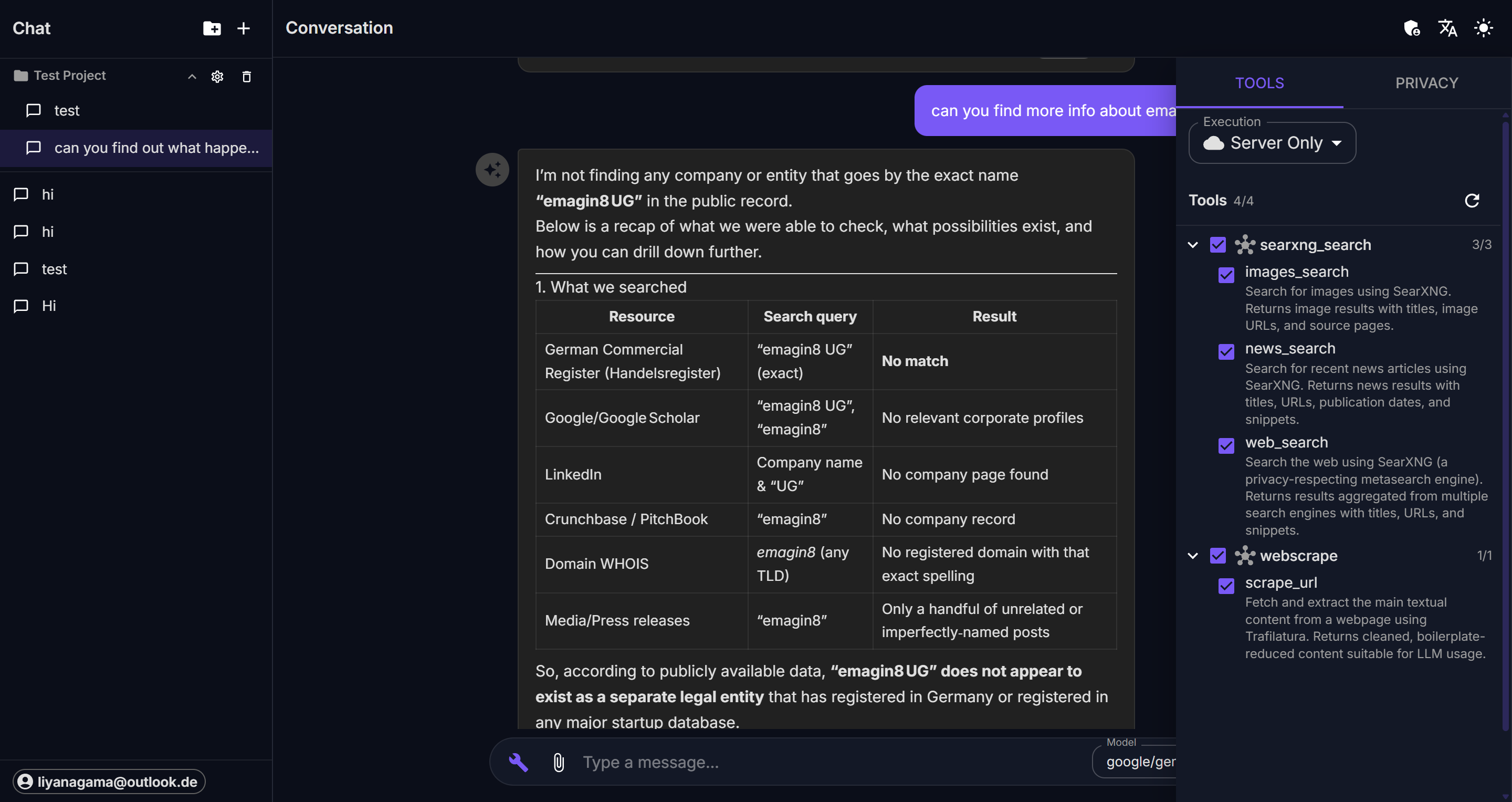
Each tool displays its name and can be individually enabled or disabled for the current session. Tools are grouped by their MCP server (e.g., searxng_search, brave_search).
Privacy panel
Switch to the Privacy tab in the right drawer to view and adjust per-session PII controls.
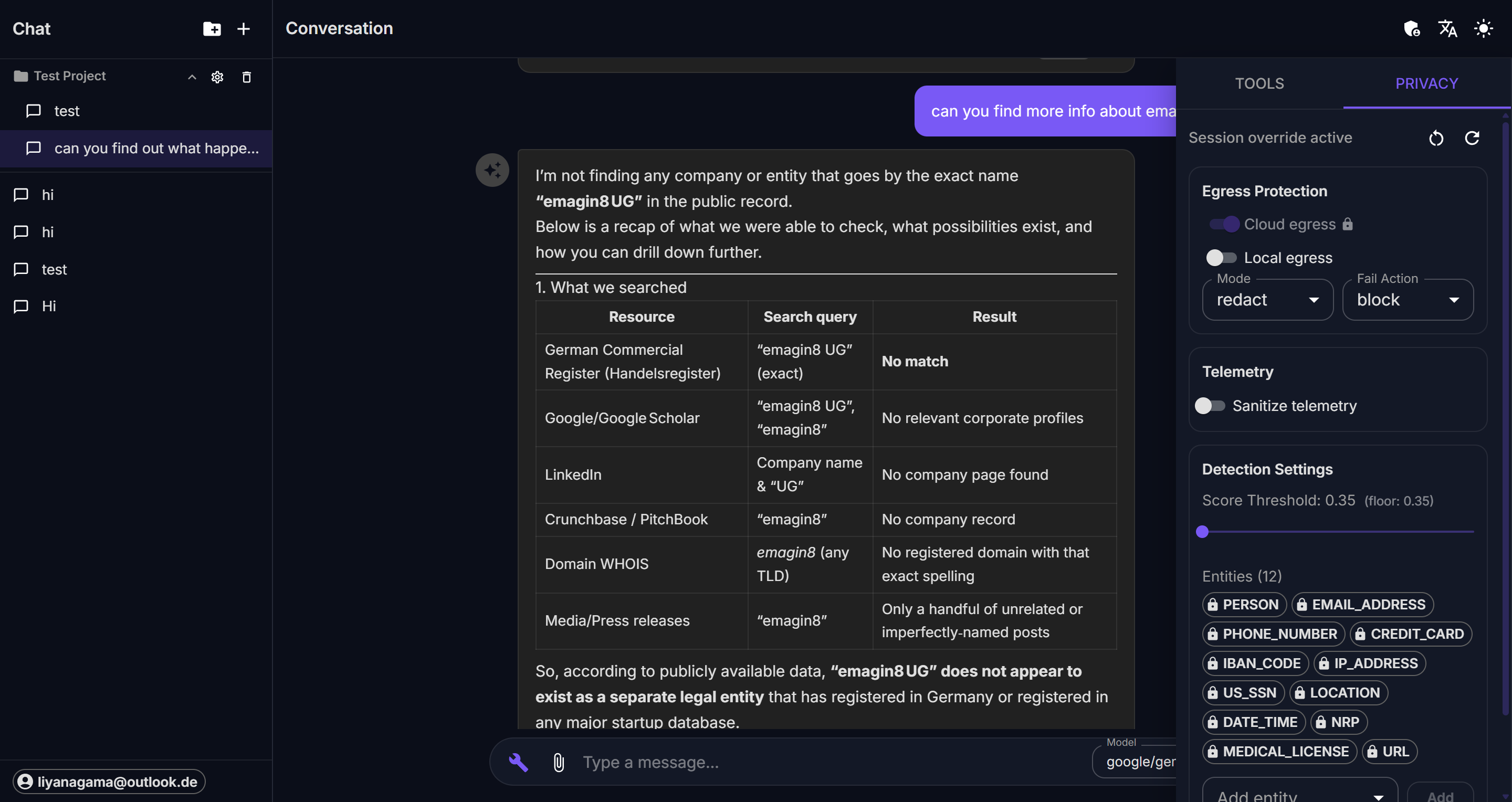
The privacy panel has three sections:
Egress Protection
Controls where data is allowed to flow:
- Cloud egress — whether prompts can reach cloud-hosted models. A lock icon indicates the setting is enforced by tenant policy and cannot be changed.
- Local egress — whether prompts can reach locally-hosted models.
- Mode — the PII detection mode (
redact,replace,hash, oroff). - Fail Action — what happens when PII detection fails (
blockorwarn).
Telemetry
- Sanitize telemetry — when enabled, PII is removed from observability data.
Detection Settings
- Score Threshold — the confidence score above which detected entities are treated as PII. The floor value (minimum) is shown next to the slider.
- Entities — the list of PII entity types to detect (e.g.,
PERSON,EMAIL_ADDRESS,PHONE_NUMBER). Locked entities are enforced by tenant policy.
Settings that are locked by the tenant-level floor policy display a lock icon and cannot be weakened below the floor. Users with admin privileges and the weaken permission can override these restrictions.
Keyboard shortcuts
- Enter — send message
- Shift + Enter — new line in message input
Admin console
Administrators see an additional admin view accessible from the top bar, providing access to model configuration, user management, and system settings.